.png?fit=max&auto=format&n=Frm2GFbmok4D-yJA&q=85&s=93c3ebd47542af65d1cd06d8563a7f6e)
- Summary Dashboards
- Executive Summary
- Meta Performance
- Google Performance
- TikTok Performance
- Pinterest Performance
- Bing/Microsoft Performance
- LinkedIn Performance
- Looker Studio Reports
- Only enabled for clients with custom Looker dashboards that cannot be archived.
- Creative Reporting
- Top Performing Creative Report
- Comparative Analysis Report
- Performance Reports (Sometimes called Custom Reports)
- View All Custom Reports
- View and Create
- Manage Goals
- Custom Metrics
- View and Create
- Custom Dimensions
- View and Create
- View All Custom Reports
Executive Summary Dashboard
- Confirm all required Shopify stores, ad platforms and analytics tools are integrated with Mission Control.
- Check for data discrepancies
- Shopify
- Gross Sales
- Total Orders
- AOV
- New Customers Aquired
- Blended Metrics 3. MER 3. Total Ad Spend 3. CAC
- All Ad Platforms (Meta, Google Ads, Etc.) 4. Ad Cost 4. Impressions 4. Clicks 4. Conversions 4. Conv Value 4. AOV
- Shopify
- Check historical date ranges & confirm there is data flowing in for the last 2 years.
Channel Reports (Meta, Google, Etc Performance Dashboards)
- For each channel specific report, check for data discrepancies between ad platform and Mission Control
- Check historical date ranges & confirm there is data flowing in for the last 2 years.
-
Confirm you’re able to filter by Account and filter by Campaign at the top of the page
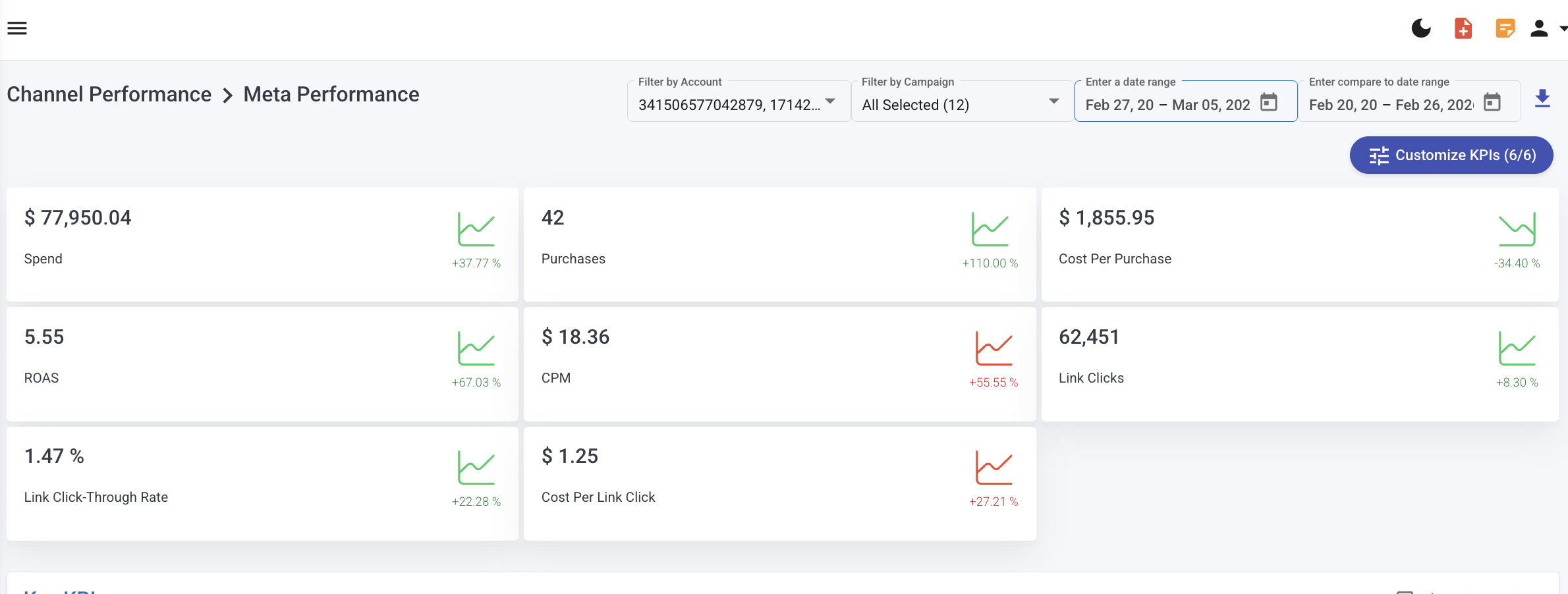
- Ensure you’re able to export Performance by Day/Week/Month table
Creative Reporting - COMING SOON
Performance Reports
- Custom Metrics
- Confirm whether your client requires any custom metrics that are unique to their Shopify set up or business. For example, do you need to exclude any Sales Channels from Shopify revenue? If the answer is yes, you need to create a custom metric.
- Click on Custom Metrics from the Performance Reports menu to get started
- View All - Templated Custom Reports
- Confirm there is a system report for each integration connected to Mission Control under “Mission Control Template Reports”

- Create Your Own Custom Reports
- To create custom reports for weekly calls, reporting decks, or daily trackers, clicks on Create New Report under Performance Reports. You’ll have the option to start with a template, start with a copy of someone else’s custom report or start from scratch. During account set up you’ll usually want to choose “Start from Scratch”
- Configure your report by giving it a Title, Description, and selection the data source needed. For daily trackers or holistic reports, be sure to choose Shopify and all ad platform integrated with Mission Control
- Next, choose whether this report will be daily, weekly, monthly or quarterly.
- And finally select all metrics you want to include in your report. You’ll have the ability to choose from system custom metrics, your own custom metrics, and all default platform metrics.
- Once you’ve selected your metrics, click Create Report.